 coco
coco
271 lines
18 KiB
Markdown
271 lines
18 KiB
Markdown
## 金融类自定义View(二)--股票分时图
|
||
> 本节主要介绍股票分时图的详细实现思路与遇到的各种问题。该分时图主要包括以下功能:数据的适配、x/y背景轴的绘制、x/轴文字的绘制、长按十字的处理、实时折线的处理、分时折线的左右滑动等。主要会陈述的问题:如何实现最新数据横线的实现、实时数据导致折线的变化的实现思路、折线图左右滑动的处理。(参考阅读:[百度百科--分时图](https://baike.baidu.com/item/%E5%88%86%E6%97%B6%E5%9B%BE/11004740?fr=aladdin "https://baike.baidu.com/item/%E5%88%86%E6%97%B6%E5%9B%BE/11004740?fr=aladdin"))
|
||
|
||
#### 前言
|
||
* 有阅读过第一篇文章的读者可能会说,这特么不和第一篇那个一样嘛。确实,实现思路基本一致,但是复杂度远大于【基金收益自定义view】,包括交互处理与数据处理。
|
||
* 该【股票分时图】当时绘制的时候也没好的分时图进行模仿,就直接拿自己公司同事之前实现的分时图进行了模仿。公司分时图实现是使用了知名的第三方图形库`MPAndroidChart`[https://github.com/PhilJay/MPAndroidChart](https://github.com/PhilJay/MPAndroidChart)。
|
||
* 既然是进行模仿,基本会严格按照原分时图进行实现,读者可以下载原APP对比体验。
|
||
* 有些地方实现并没有严格按照自定义view的套路去实现,比如自定义View属性的抽取、颜色的抽取等(因为真的属性太多了...),后期会逐步完善抽取。
|
||
* 代码我是尽可能的清晰表达,保证在修改使用的时候可以容易阅读。
|
||
* 本来打算用半年的时候,绘制出自己的金融交易类“K线图”。现在看来,用不了那么久了。因为分时图绘制出来之后,蜡烛图实现就比较简单了--只要在目标点绘制矩形图即可。
|
||
* 代码有点多,enjoy it~
|
||
|
||
#### 效果图
|
||
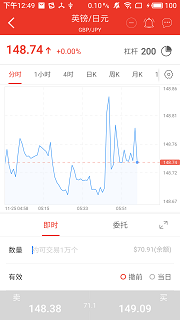
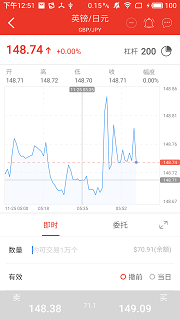
###### 原【天厚实盘】分时图
|
||
|
||
* 【天厚实盘】分时图_默认
|
||
|
||
|
||
|
||
* 【天厚实盘】分时图_长按
|
||
|
||
|
||
|
||
* 【天厚实盘】分时图_gif
|
||
|
||

|
||
|
||
###### 仿分时图【TimeSharingView.java】
|
||
|
||
* 第一阶段,参数准备,外边框、内虚线、折线图等的绘制
|
||
|
||

|
||
|
||
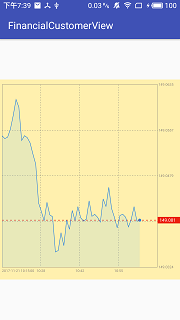
* 第二阶段,x、y文字、实时横线和实时数据、下方透明阴影
|
||
|
||
|
||
|
||
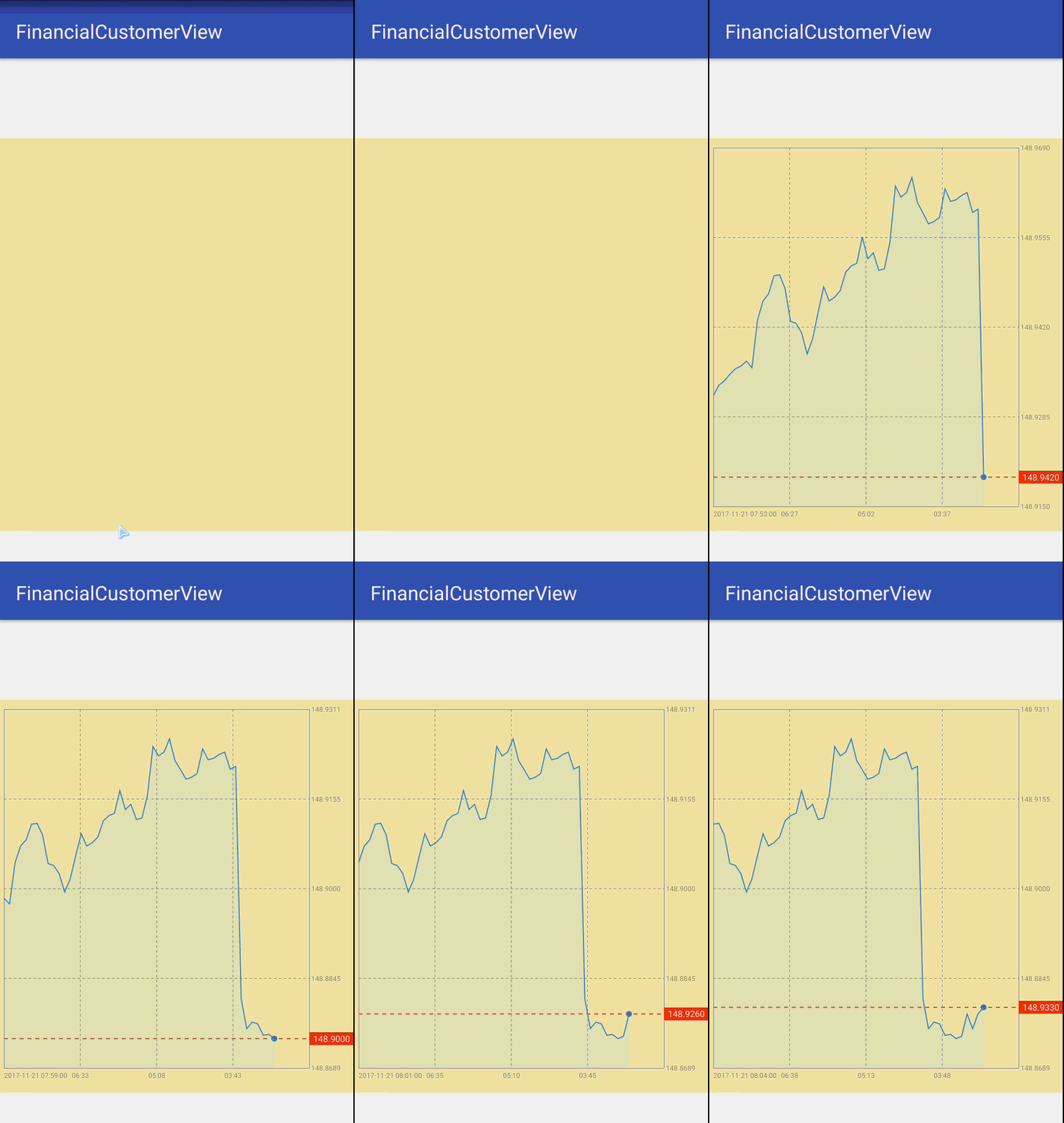
* 第三阶段,实时数据更新分时图
|
||
|
||
|
||
|
||
* 第四阶段,长按十字线,左右移动分时图
|
||
|
||

|
||
|
||
#### 主要运用什么知识
|
||
* 自定义View基础知识
|
||
* 运用Paint绘制文字、绘制横线、绘制矩形
|
||
* 运用Path绘制折线、绘制背景
|
||
* `onTouchEvent(MotionEvent event)`各种手势的监听与处理
|
||
* 【重点】大量的计算、测量以及定位
|
||
* 线程的切换处理(Rxjava,可选)
|
||
|
||
#### 参考
|
||
* 加载中文字处理、x/y轴曲线的绘制、x轴时间文字和y轴收益文字的定位和绘制、折线的绘制
|
||
、长按十字的处理请参考第一篇文章:[金融类自定义View(一)--仿蚂蚁财富基金收益曲线图](http://blog.csdn.net/wgyscsf/article/details/78446572 "http://blog.csdn.net/wgyscsf/article/details/78446572")
|
||
|
||
|
||
#### 数据量和位置的确认
|
||
* 对于分时图有一个问题,就是数据的加载和实时推送。因为,对于分时图第一次加载的时候,数据量可能是不确定的,可能第一次拉去过来500条,也可能是100条。同时,分时图中显示的条数也是可变的。比如,分时图中可以显示40条,也可以显示100条。对于自定义分时图来说,两边的数据都不确认。这里的处理思路是,定义全局的数据起始点和结束点,每次刷新页面都会重新计算数据的起始位置和结束位置,同时刚加载的时候和滑动的时候数据的起始位置和结束位置计算方式是不一样的。我们多思考一点,其实所谓的K线图的移动,就是重新寻找数据的起始位置和结束位置,计算好新的开始和结束位置,可以刷新界面了,完成移动操作。
|
||
|
||
/**
|
||
* 来最新数据或者刚加载的时候,计算开始位置和结束位置。特别注意,最新的数据在最后面,所以数据范围应该是[(size-mShownMaxCount)~size)
|
||
*/
|
||
private void counterBeginAndEndByNewer() {
|
||
int size = mQuotesList.size();
|
||
if (size >= mShownMaxCount) {
|
||
mBeginIndex = size - mShownMaxCount;
|
||
mEndIndex = mBeginIndex + mShownMaxCount;
|
||
} else {
|
||
mBeginIndex = 0;
|
||
mEndIndex = mBeginIndex + mQuotesList.size();
|
||
}
|
||
}
|
||
|
||
|
||
/**
|
||
* 移动K线图计算移动的单位和重新计算起始位置和结束位置
|
||
* @param moveLen
|
||
*/
|
||
private void moveKView(float moveLen) {
|
||
mPullRight = moveLen > 0;
|
||
mPullType = moveLen > 0 ? PullType.PULL_RIGHT : PullType.PULL_LEFT;
|
||
int moveCount = (int) Math.ceil(Math.abs(moveLen) / mPerX);
|
||
if (mPullRight) {
|
||
int len = mBeginIndex - moveCount;
|
||
if (len < 0) {
|
||
mBeginIndex = 0;
|
||
} else {
|
||
mBeginIndex = len;
|
||
}
|
||
} else {
|
||
int len = mBeginIndex + moveCount;
|
||
if (len + mShownMaxCount > mQuotesList.size()) {
|
||
mBeginIndex = mQuotesList.size() - mShownMaxCount;
|
||
} else {
|
||
mBeginIndex = len;
|
||
mPullType = PullType.PULL_NONE;//到最左边啦
|
||
}
|
||
}
|
||
mEndIndex = mBeginIndex + mShownMaxCount;
|
||
//开始位置和结束位置确认好,就可以重绘啦~
|
||
Log.e(TAG, "moveKView: mPullRight:" + mPullRight + ",mBeginIndex:" + mBeginIndex + ",mEndIndex:" + mEndIndex);
|
||
processData();
|
||
}
|
||
|
||
#### 分时图的实时变化
|
||
* 所谓分时图,就是要根据服务推送过来的数据,实时更新折线图。这里的实现采用随机时间模拟服务端推送过来的数据。所谓的折线图实时变化,实现思路其实关键点还是在于数据集合的起始位置和结束位置的确认。确认好起始和结束位置后,重新绘制新的折线即可。因此,该分时图View提供了一个添加单个数据的方法:
|
||
|
||
/**
|
||
* 实时推送过来的数据,实时更新
|
||
*
|
||
* @param quotes
|
||
*/
|
||
public void addTimeSharingData(Quotes quotes) {
|
||
if (quotes == null) {
|
||
Toast.makeText(mContext, "数据异常", Toast.LENGTH_SHORT).show();
|
||
Log.e(TAG, "setTimeSharingData: 数据异常");
|
||
return;
|
||
}
|
||
mQuotesList.add(quotes);
|
||
//如果实在左右移动,则不去实时更新K线图,但是要把数据加进去
|
||
if (mPullType == PullType.PULL_NONE) {
|
||
Log.e(TAG, "addTimeSharingData: 处理实时更新操作...");
|
||
counterBeginAndEndByNewer();
|
||
processData();
|
||
}
|
||
}
|
||
|
||
#### 折线图的绘制和折线图阴影的处理
|
||
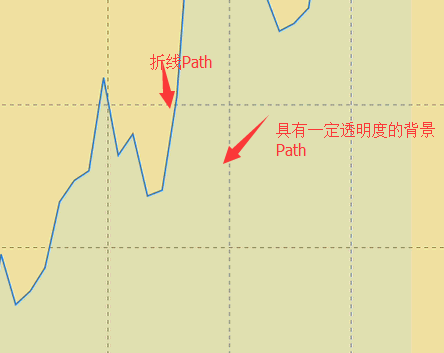
* 由上面两点可以看出,只要有起始位置和结束位置,不仅可以绘制好折线还可以实时更新,那么折线图的绘制就要求很高了。同时,我们可以注意一下,折线图下面的阴影,这个阴影怎么处理?查找了很多资料,并没有Path绘制折线并且绘制不同颜色的背景的处理;并且,折线并不是完整的闭环,而是只有上方一部分。这个地方思考了很久,最终的解决方案是,采用两个Path,第一个Path只绘制用户看到的折线图,同时设置画笔属性`mBrokenLinePaint.setStyle(Paint.Style.STROKE);`,只绘制折线,不填充内容。另外提供一个Path,只绘制内容,设置画笔属性:`mBrokenLineBgPaint.setStyle(Paint.Style.FILL);`,另外提供透明效果:`mBrokenLineBgPaint.setAlpha(mAlpha);`,这样就实现了这种效果:
|
||
|
||
|
||
|
||
//折线图绘制核心代码
|
||
private void drawBrokenLine(Canvas canvas) {
|
||
//先画第一个点
|
||
Quotes quotes = mQuotesList.get(mBeginIndex);
|
||
Path path = new Path();
|
||
Path path2 = new Path();
|
||
//这里需要说明一下,x轴的起始点,其实需要加上mPerX,但是加上之后不是从起始位置开始,不好看。
|
||
// 同理,for循环内x轴其实需要(i+1)。现在这样处理,最后会留一点空隙,其实挺好看的。
|
||
float floatY = (float) (mHeight - mPaddingBottom - mInnerBottomBlankPadding - mPerY * (quotes.c - mMinQuotes.c));
|
||
//在自定义view:FundView中的位置坐标
|
||
//记录下位置信息
|
||
quotes.floatX = mPaddingLeft;
|
||
quotes.floatY = floatY;
|
||
path.moveTo(mPaddingLeft, floatY);
|
||
path2.moveTo(mPaddingLeft, floatY);
|
||
for (int i = mBeginIndex + 1; i < mEndIndex; i++) {
|
||
Quotes q = mQuotesList.get(i);
|
||
float floatX2 = mPaddingLeft + mPerX * (i - mBeginIndex);//注意这个 mPerX * (i-mBeginIndex),而不是mPerX * (i)
|
||
float floatY2 = (float) (mHeight - mPaddingBottom - mInnerBottomBlankPadding - mPerY * (q.c - mMinQuotes.c));
|
||
//记录下位置信息
|
||
q.floatX = floatX2;
|
||
q.floatY = floatY2;
|
||
path.lineTo(floatX2, floatY2);
|
||
path2.lineTo(floatX2, floatY2);
|
||
//最后一个点,画一个小圆点;实时横线;横线的右侧数据与背景;折线下方阴影
|
||
if (i == mEndIndex - 1) {
|
||
//绘制小圆点
|
||
canvas.drawCircle(floatX2, floatY2, mDotRadius, mDotPaint);
|
||
|
||
//接着画实时横线
|
||
canvas.drawLine(mPaddingLeft, floatY2, mWidth - mPaddingRight, floatY2, mTimingLinePaint);
|
||
|
||
//接着绘制实时横线的右侧数据与背景
|
||
//文字高度
|
||
float txtHight = getFontHeight(mTimingTxtWidth, mTimingTxtBgPaint);
|
||
//绘制背景
|
||
canvas.drawRect(mWidth - mPaddingRight, floatY2 - txtHight / 2, mWidth, floatY2 + txtHight / 2, mTimingTxtBgPaint);
|
||
|
||
//绘制实时数据
|
||
//距离左边的距离
|
||
float leftDis = 8;
|
||
canvas.drawText(FormatUtil.numFormat(q.c, mDigits), mWidth - mPaddingRight + leftDis, floatY2 + txtHight / 4, mTimingTxtPaint);
|
||
|
||
//在这里把path圈起来,添加阴影。特别注意,这里处理下方阴影和折线边框。采用两个画笔和两个Path处理的,貌似没有一个Paint可以同时绘制边框和填充色
|
||
path2.lineTo(floatX2, mHeight - mPaddingBottom);
|
||
path2.lineTo(mPaddingLeft, mHeight - mPaddingBottom);
|
||
path2.close();
|
||
}
|
||
}
|
||
canvas.drawPath(path, mBrokenLinePaint);
|
||
canvas.drawPath(path2, mBrokenLineBgPaint);
|
||
}
|
||
|
||
#### 折线图的左右滑动处理
|
||
* 这个功能的实现考虑了很久,不知道怎么实现。当时还在考虑安卓的画布是否会提供类似于ScrollView的功能,可以绘制很多View,然后可以左右滑动View;或者类似于ListView....(并没有)
|
||
* 最终的实现思路是这样的(有线上运行的分时图是这样处理的,可以放心使用!):
|
||
0. 监听滑动
|
||
1. 手指滑动的时候,记录下滑动的x轴的距离
|
||
2. 根据单位数据的x轴的距离,计算出需要移动几个单位的数据(注意边界和方向问题)
|
||
3. 根据移动的单位,重新计算起始位置和结束位置(其实最上面的起始位置和结束位置的确认,是在这里得到启发的)
|
||
4. 刷新View
|
||
|
||
|
||
//监听判断手指移动
|
||
@Override
|
||
public boolean onTouchEvent(MotionEvent event) {
|
||
switch (event.getAction()) {
|
||
case MotionEvent.ACTION_DOWN:
|
||
mPressedX = event.getX();
|
||
mPressTime = event.getDownTime();
|
||
//按下的手指个数
|
||
mFingerPressedCount = event.getPointerCount();
|
||
break;
|
||
case MotionEvent.ACTION_MOVE:
|
||
|
||
...
|
||
|
||
//判断是否是手指移动
|
||
float currentPressedX = event.getX();
|
||
float moveLen = currentPressedX - mPressedX;
|
||
//重置当前按下的位置【不要忘了】
|
||
mPressedX = currentPressedX;
|
||
if (Math.abs(moveLen) > DEF_PULL_LENGTH && mFingerPressedCount == 1) {
|
||
Log.e(TAG, "onTouchEvent: 正在移动分时图");
|
||
//移动k线图
|
||
moveKView(moveLen);
|
||
}
|
||
break;
|
||
...
|
||
|
||
}
|
||
|
||
|
||
/**
|
||
* 移动K线图计算移动的单位和重新计算起始位置和结束位置
|
||
* @param moveLen
|
||
*/
|
||
private void moveKView(float moveLen) {
|
||
mPullRight = moveLen > 0;
|
||
mPullType = moveLen > 0 ? PullType.PULL_RIGHT : PullType.PULL_LEFT;
|
||
int moveCount = (int) Math.ceil(Math.abs(moveLen) / mPerX);
|
||
if (mPullRight) {
|
||
int len = mBeginIndex - moveCount;
|
||
if (len < 0) {
|
||
mBeginIndex = 0;
|
||
} else {
|
||
mBeginIndex = len;
|
||
}
|
||
} else {
|
||
int len = mBeginIndex + moveCount;
|
||
if (len + mShownMaxCount > mQuotesList.size()) {
|
||
mBeginIndex = mQuotesList.size() - mShownMaxCount;
|
||
} else {
|
||
mBeginIndex = len;
|
||
mPullType = PullType.PULL_NONE;//到最左边啦
|
||
}
|
||
}
|
||
mEndIndex = mBeginIndex + mShownMaxCount;
|
||
//开始位置和结束位置确认好,就可以重绘啦~
|
||
Log.e(TAG, "moveKView: mPullRight:" + mPullRight + ",mBeginIndex:" + mBeginIndex + ",mEndIndex:" + mEndIndex);
|
||
//这里就是处理和刷新数据
|
||
processData();
|
||
}
|
||
|
||
|
||
#### 待处理的问题
|
||
* 长按十字,上方应该显示:开盘价、收盘价、最高价、最低价、时间等信息;这里不再将这一块在View中绘制,而是在xml中进行绘制即可。该View其实很简单,只需要提供一个接口,把点击长按的数据回调出去就好~
|
||
* 双指View缩放的处理,这里当时考虑很难处理的。但是,现在已经有思路了:改变显示的View的数据量,同时找到中间位置,以该位置左右加减指定的数据量,刷新界面即可!
|
||
* 滑动到最左边,加载更多数据....
|
||
* 手指滑动、更新数据都会导致整个View的重新绘制,可能短时间内会导致N次重绘,感觉严重影响性能。但是,问了一些朋友,貌似都是这样处理的。。。没有其它方式吗?
|
||
* 打个广告,公司一直在**招聘**,java、DBA、H5、Devlops等,坐标:上海,欢迎来投:[天厚投资 Tophold](https://www.lagou.com/gongsi/j3720.html)
|
||
|
||
#### code
|
||
* [`https://github.com/scsfwgy/FinancialCustomerView`](https://github.com/scsfwgy/FinancialCustomerView "https://github.com/scsfwgy/FinancialCustomerView")
|
||
* 注:该项目会一直维护,不断加入新的关于金融类的各种自定义View。最终的目标是绘制出复杂多变的K线图~
|
||
|